TL;DR (quick summary)
- This tutorial shows you how to make a plant timelapse from start to finish — gear, setup, shooting and editing.
- You’ll learn which camera, lens, tripod, intervalometer and lights work well for long-term timelapses.
- We cover camera settings (ISO, shutter speed, aperture) and stable lighting so your footage doesn’t flicker.
- You’ll see how to import your photos into DaVinci Resolve, turn them into a video and add colour grading and music.
- Full YouTube video, gear list with links, and growing conditions are all included below.
Have you ever wondered how those satisfying plant timelapse videos are made? In this guide I’ll show you exactly how to make a plant timelapse — from choosing the gear to exporting the final video. It’s based on my own long-term projects (some running over months), so you get a realistic workflow and not just theory. And yes, there’s a full video too.
Full plant timelapse tutorial (video)
If you prefer to watch instead of read, here’s the complete video tutorial where I walk through the whole process on camera:
If you want to go even deeper into gear and settings, also check out my detailed plant timelapse setup guide.
Equipment and software you need
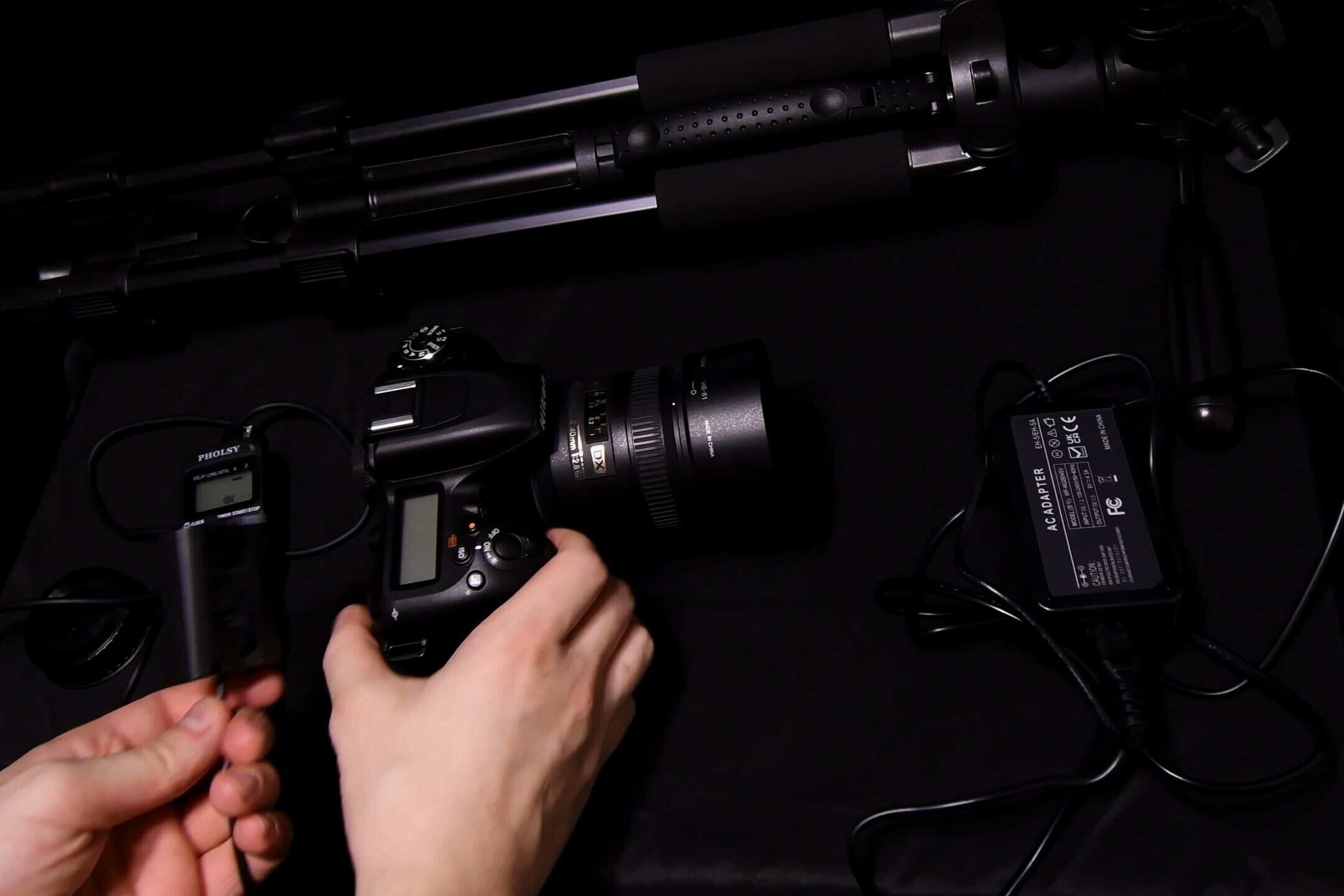
The picture above shows the core setup I use for most of my plant timelapses: camera, macro lens, tripod, intervalometer, plant lamp and a DC adapter. Here’s the basic checklist to get you started:
- Camera: I use a Nikon D7500 with a 40mm macro lens. Any DSLR or mirrorless camera that shoots in manual mode works. Higher resolution gives you more freedom to crop.
- SD card: a 128GB card or larger is ideal — long-term timelapses can easily create tens of thousands of images.
- Tripod: keeps your camera locked in place for days or weeks. Stability is everything.
- Intervalometer: a remote that automatically takes photos at set intervals (every few minutes).
- DC adapter: powers the camera from a wall socket so you don’t have to change batteries mid-grow.
- Plant lamp: provides consistent LED light, so your plant grows well and your timelapse doesn’t flicker.
Setting up your plant timelapse
Once you have the gear, it’s time to build your little timelapse studio. This is where you decide the framing, background and lighting — and where most of the magic (or disaster) happens.
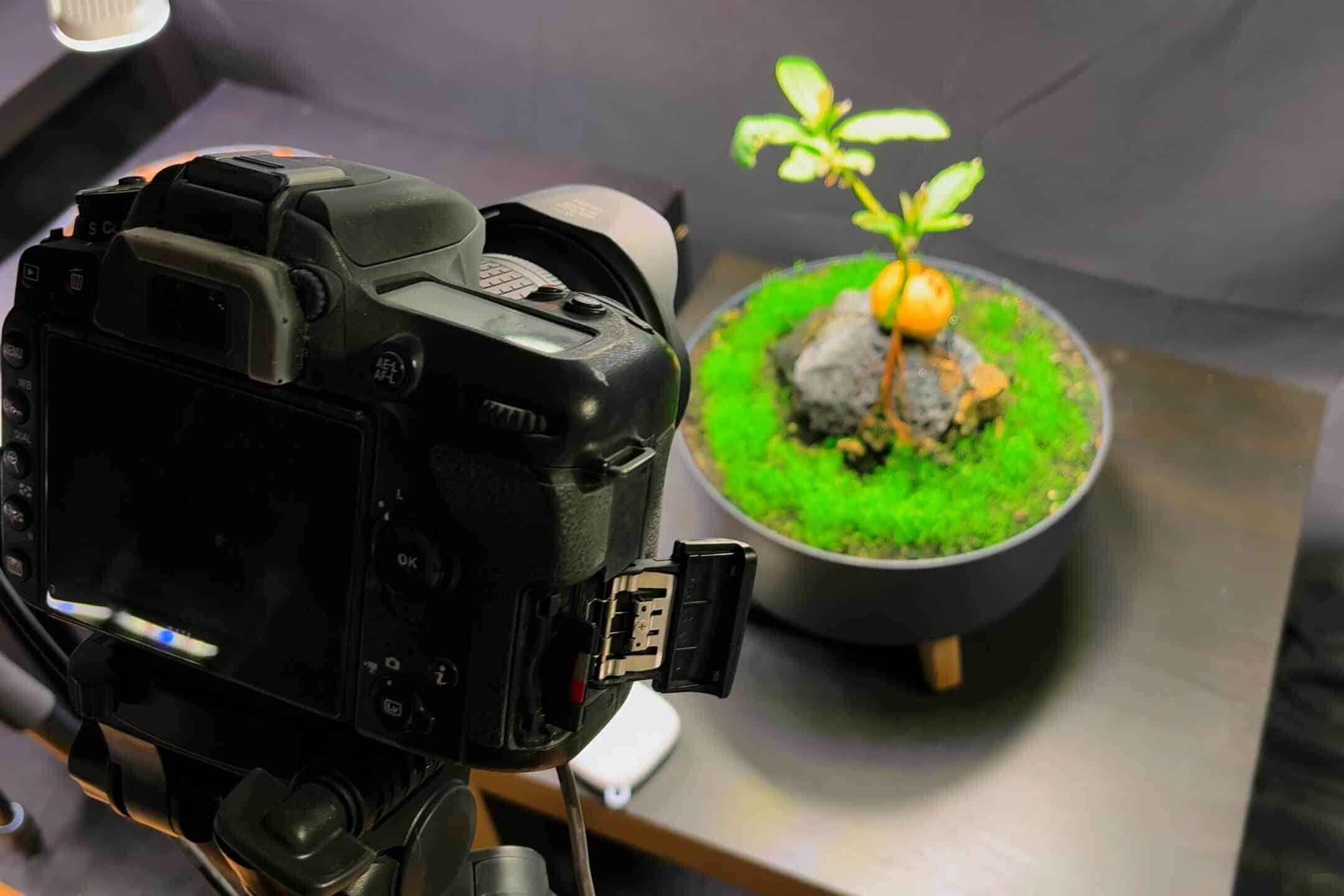
In the example above you can see one of my setups: camera on a tripod, plant in a pot, black background and a grow light above. Simple, but it works great.
- Camera setup: position your camera on the tripod, connect SD card, intervalometer and DC adapter. Set the camera to manual mode so exposure stays constant over time.
- Interval: for most plants I use an interval of 2–3 minutes between shots. Slower plants can be shot every 5–10 minutes.
- Lighting: place the plant lamp above or slightly in front of the plant. You want even lighting without harsh shadows — and no changing daylight if possible.
- Focus & exposure: focus manually on the part of the plant that will move the most (tip, flower, etc.). Lock ISO, shutter speed and aperture so the look stays consistent.
Understanding the basic camera settings
- ISO: controls sensor sensitivity. Use a low ISO (100–200) if your plant lamp is bright enough — this keeps the image clean and reduces noise.
- Shutter speed: how long the sensor is exposed to light. For plants you can usually go relatively slow (e.g. 1/30–1/4 s) because nothing moves fast, but avoid vibration.
- Aperture: the f-stop controls depth of field. A slightly higher f-stop (e.g. f/8–f/11) keeps more of the plant in focus and is usually a good choice for timelapse.
Growing conditions for a smooth plant timelapse
Your timelapse will only look as good as your plant grows. So while we nerd out about cameras, don’t forget basic plant care:
- Substrate: a high-quality potting mix suitable for your plant. For dwarf sunflowers or similar, a well-draining mix works great.
- Temperature: keep things stable around 18–24°C (65–75°F). Big swings stress both the plant and your timelapse.
- Watering: keep the soil evenly moist but never swampy. Standing water = sad roots and mouldy footage.
- Light: aim for 12–16 hours of consistent light per day. Consistency is key to avoid visible flicker.
Capturing the growth
Now the “boring” part starts — which is actually the most important: letting the camera run and not touching anything.
- Start by filming the moment you plant the seed and cover it with soil.
- Then switch fully to the intervalometer — photos every few minutes, all day, every day.
- Regularly copy images from the SD card to your PC so you don’t run out of space and you have backups.
- Try not to move the pot or tripod. Tiny movements become very obvious in the final timelapse.
Editing your plant timelapse in DaVinci Resolve
Once you’ve collected enough images (hundreds or thousands), it’s time to turn them into a video. I use DaVinci Resolve because the free version is insanely powerful.
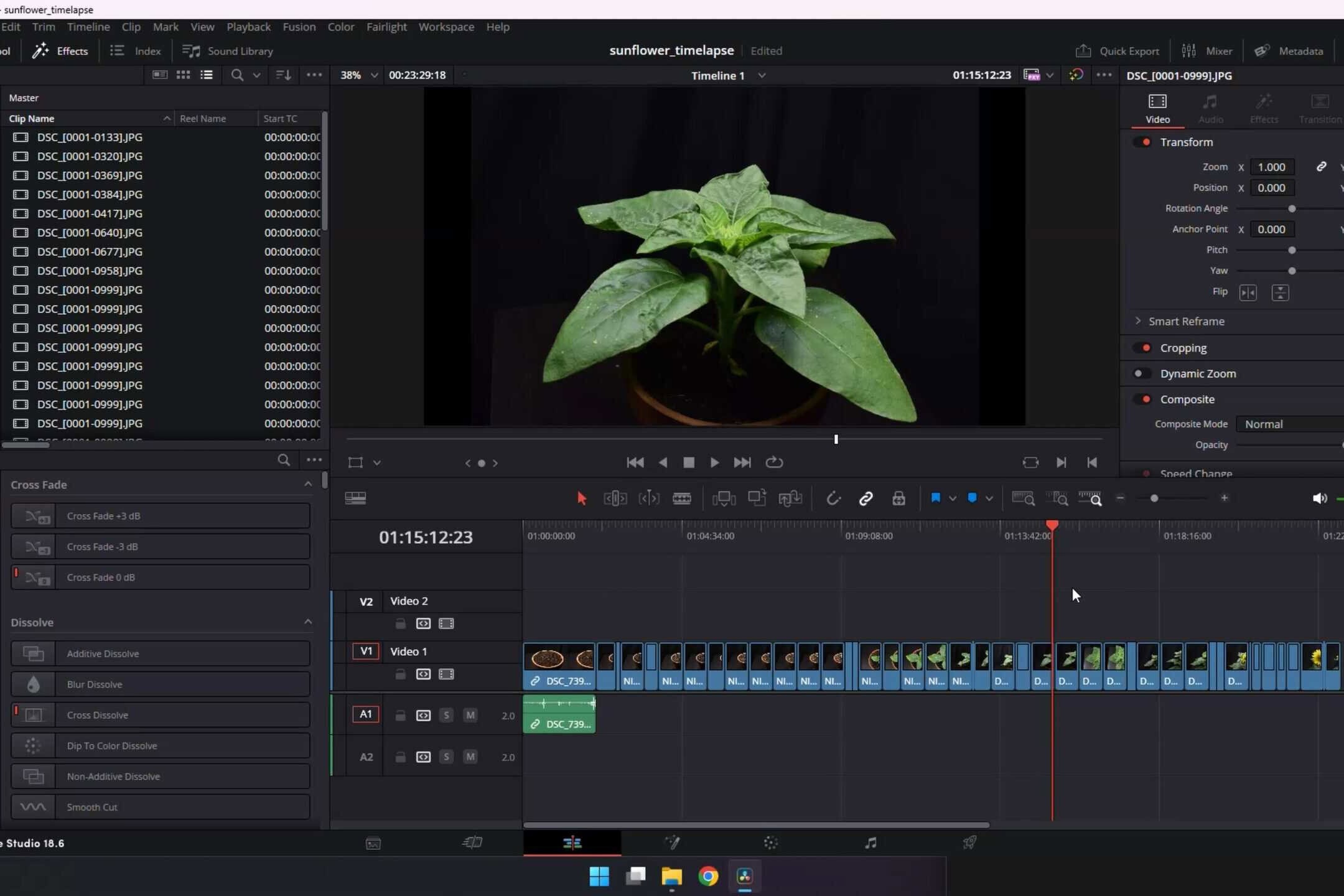
- Software: download DaVinci Resolve (the free version is enough).
- Importing photos: create a new project and import your photo sequence. In Resolve you can treat a folder of images as a single clip.
- Adjusting speed: put the sequence on the timeline and adjust playback speed to make the growth feel smooth and natural.
- Adding effects: add text overlays (e.g. “Day 1”, “Day 30”) and maybe a little zoom or pan (Ken Burns style) to keep the video dynamic.
- Music: choose a fitting track from Epidemic Sound to give your timelapse the final touch.
Here’s a peek at the colour grading stage:
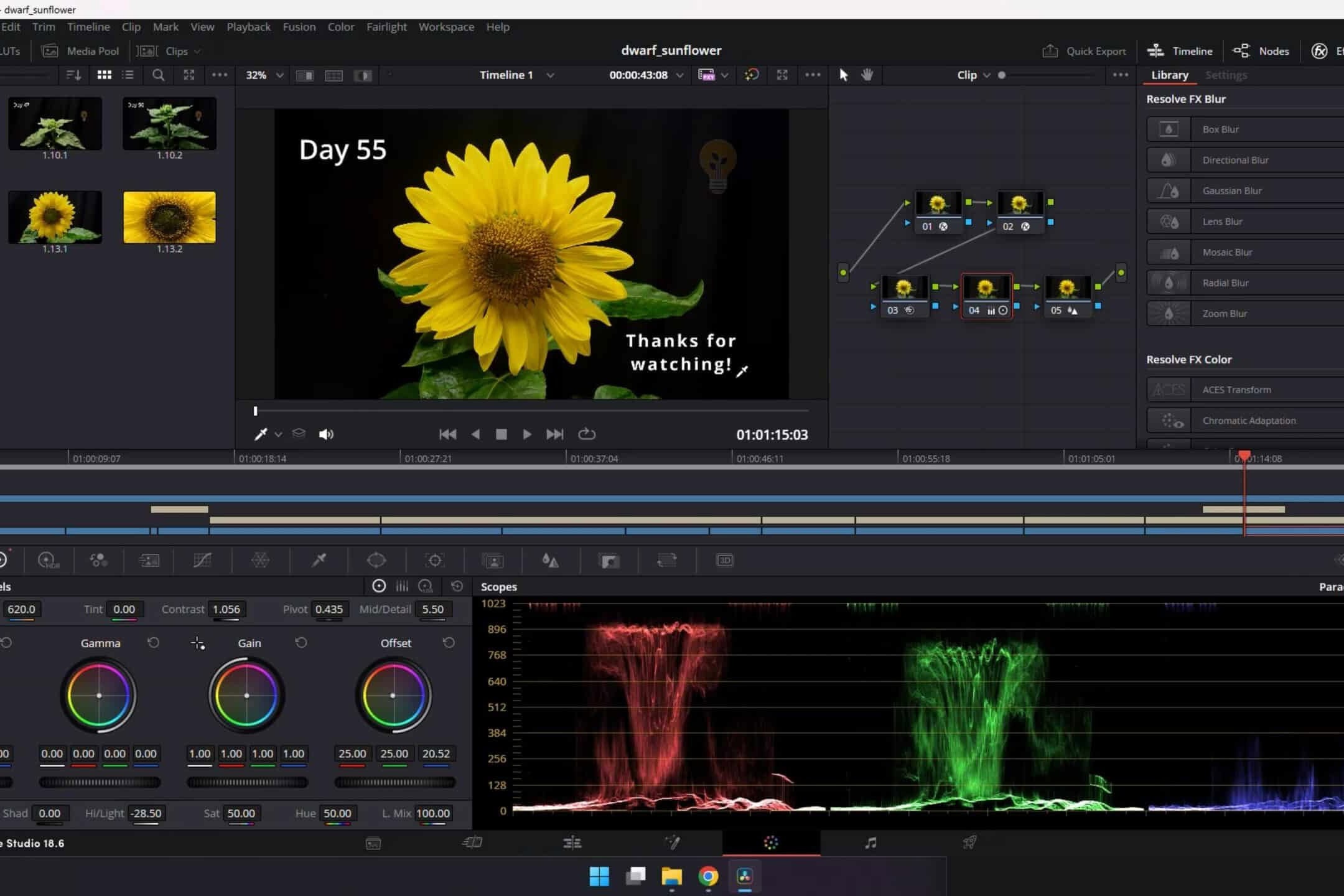
Above you can see my colour grading nodes in Resolve. A bit of contrast, some saturation and maybe a subtle vignette can make a huge difference without making the timelapse look fake.
Full equipment list (with links)
Here’s the gear I use for creating plant timelapses. Some of these are affiliate links — they don’t cost you extra, but they help support more plant experiments and timelapses.
- Camera: Nikon D7500 — DSLR with high-quality stills and 4K video.
- Macro lens (compact): Nikon AF-S DX Micro-Nikkor 40mm — for detailed close-ups.
- Macro lens (more reach): Sigma 105mm F2.8 EX Macro — when you want more working distance.
- DC adapter: Camera DC adapter — keeps the camera powered 24/7.
- Intervalometer: Neewer intervalometer — fires the shutter at fixed intervals.
- Tripod: Manfrotto Compact Action Tripod — keeps your framing locked.
- Black background: Black background — makes the plant pop.
- Grow light #1: Roleadro LED grow light — strong, consistent LED light.
- Grow light #2: LED grow light — a second solid option.
- Music: Epidemic Sound — licensed tracks for your videos.
- Editing: DaVinci Resolve — free, powerful editor.
Want to read more?
For more general timelapse techniques and editing tips, see this Digital Camera World timelapse guide.